Claude Code: My New Favorite Coding Companion
A personal review of Claude Code and the workflows that make it shine
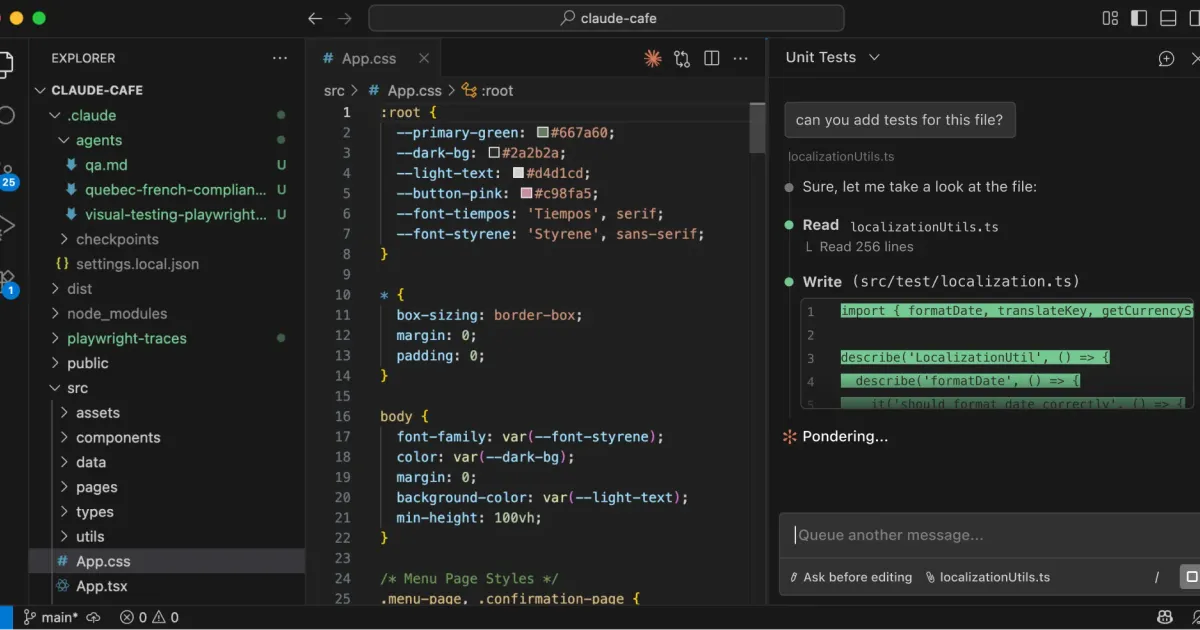
What if your terminal could understand your entire codebase? Not just grep through files, but actually understand the relationships between components, the patterns you follow, and the context of what you’re trying to build?
That’s exactly what Claude Code delivers, and after using it for a few months now, I can confidently say it has changed how I approach software development.
* ▝▜█████▛▘ *
* ▘▘ ▝▝ *
What is Claude Code?
Claude Code is Anthropic’s official CLI tool that brings Claude directly into your development workflow. Unlike chatting with Claude in a browser window and copy-pasting code back and forth, Claude Code operates natively in your terminal or IDE. It can read your files, understand your project structure, and make coordinated changes across multiple files.
The key differentiator? Its agentic search capability. You don’t need to manually select context or explain your project structure. Claude Code explores your codebase, understands dependencies, and builds context automatically. It’s like having a senior developer who has already read through your entire repository.
My Setup & First Impressions
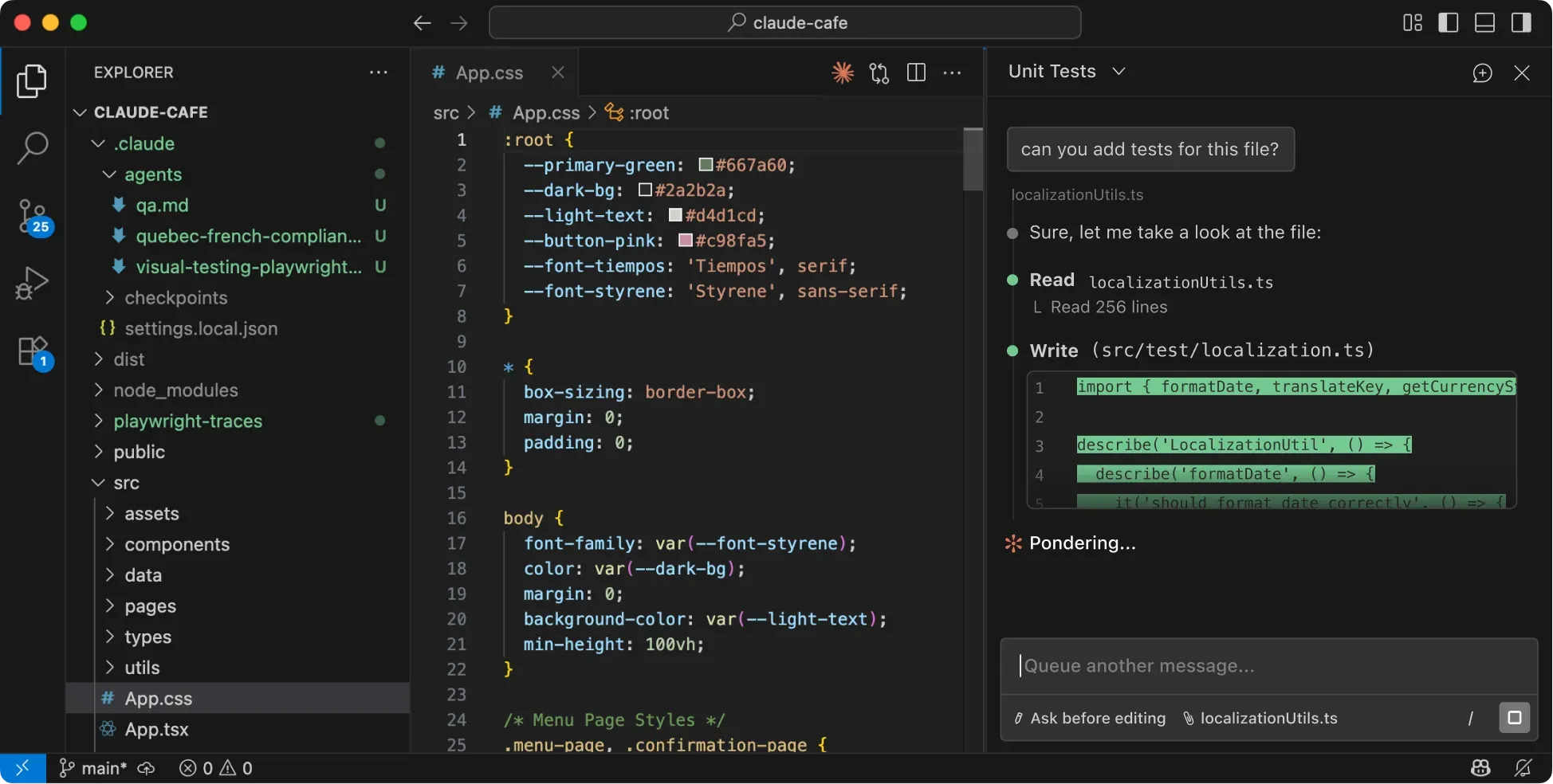
Getting started was straightforward: npm install -g @anthropic-ai/claude-code and authenticate with your Anthropic account. I primarily use it in two ways:
- Terminal mode - For quick tasks, refactoring, and when I want full control
- VS Code extension - For longer coding sessions where I want to see changes in real-time
My first “wow” moment came when I asked Claude Code to help me refactor a messy authentication system. Instead of me having to explain which files were involved, it explored the codebase, identified all the relevant files, understood the data flow, and proposed a comprehensive refactoring plan. That saved me at least an hour of context-gathering.
Workflows That Changed My Life
The CLAUDE.md Configuration
Every project I work on now has a CLAUDE.md file in the root. This file gives Claude Code persistent context about your project: the tech stack, coding conventions, common commands, and architectural decisions.
# CLAUDE.md

## Tech Stack
- Runtime: Bun
- Framework: Astro with React
- Styling: Tailwind CSS 4.0

## Commands
- `bun dev` - Development server
- `bun tsc --noEmit` - Type checking
Pro Tip
Keep your CLAUDE.md updated as your project evolves. Add new patterns, gotchas, and decisions as you discover them. Future-you (and Claude) will thank you.
Multi-file Refactoring
This is where Claude Code truly shines. I recently needed to rename a component and update all its usages across 15 files. With a single prompt, Claude Code:
- Found all imports and usages
- Updated the component name consistently
- Fixed TypeScript types that referenced the old name
- Even caught a few edge cases I would have missed
The 99.9% accuracy claim on their website? I believe it. The changes were clean and consistent.
Git Integration
The git workflow integration is chef’s kiss. I can describe what I want to accomplish, and Claude Code will:
- Stage the relevant files
- Write a meaningful commit message
- Create pull requests with proper descriptions
Commit Style
You can specify your preferred commit message style in CLAUDE.md. I use conventional commits, and Claude Code follows that pattern perfectly.
Tips & Tricks
Here are some power-user techniques I’ve discovered:
Custom Slash Commands
Create reusable prompts in .claude/commands/. For example, I have /review-pr that runs my standard code review checklist:
<!-- .claude/commands/review-pr.md -->
Review the current PR for:
- Security vulnerabilities
- Performance issues
- Missing error handling
- Test coverage gaps
Slash Commands
Put commonly used prompts in slash commands. It saves time and ensures consistency across your workflow.
MCP Server Integrations
Claude Code supports MCP (Model Context Protocol) servers, which extend its capabilities. I use the Context7 integration to pull in up-to-date documentation for libraries directly into my prompts. You can also set up custom MCPs for your internal tools.
Context Management
For large codebases, be strategic about context. Instead of letting Claude Code explore everything, point it to specific directories or files when you know where the changes need to happen. This speeds up responses and reduces token usage.
Watch Your Tokens
Long conversations can get expensive. Start fresh conversations for new tasks rather than continuing in one mega-thread.
The Not-So-Perfect Parts
Let’s be real: Claude Code isn’t perfect.
Cost: It uses your Anthropic API credits, and complex tasks can add up. I’ve had single sessions cost $5-10 on large refactoring tasks. Worth it for productivity gains, but something to monitor.
Context limits: Despite automatic summarization, very long conversations can lose context. I’ve learned to start fresh conversations for distinct tasks.
Overkill for simple tasks: Sometimes grep or a simple find-and-replace is faster. Not every task needs an AI agent.
Conclusion
Claude Code has become an essential part of my development toolkit. The combination of codebase understanding, multi-file editing, and git integration creates a workflow that feels genuinely collaborative rather than just autocomplete-on-steroids.
Is it for everyone? Probably not. If you’re working on small projects or prefer granular control over every change, the traditional approach might suit you better. But for anyone managing complex codebases or wanting to move faster on implementation, Claude Code is worth trying.
Check out the official documentation to get started.